XLOOKUP vs VLOOKUP – Key Differences
XLOOKUP vs VLOOKUP is an important comparison for anyone learning Microsoft Excel and data analysis. Both functions help you find specific information in a dataset, but XLOOKUP offers more flexibility, better error handling, and the ability to search in both directions. VLOOKUP remains useful for older Excel versions and existing spreadsheets. In this guide, we will explain the 5 key differences between XLOOKUP and VLOOKUP, with formulas, examples, common errors, and tips to help you choose the right function for your data analysis tasks.
Table of Contents
VLOOKUP has been a fundamental formula that we learn early on in Excel to help us feel like our spreadsheets aren’t just glorified tables. Whilst it is also one of the most limitations and fragile formulas, most only realise these issues occur when they are relying on the formula for day to day tasks. For almost everything that VLOOKUP normally causes headaches for, XLOOKUP has been implemented to overcome them. Once you understand what differences there really are between VLOOKUP and XLOOKUP it’s hard to go back to using VLOOKUP with one hand tied behind your back!
Below you’ll find a breakdown of both formulas and what issues you’ll commonly face when using the VLOOKUP.
What VLOOKUP Does
VLOOKUP searches for values within the first column of a range and returns a result in the required column further to the right. The syntax for VLOOKUP is:
=VLOOKUP(lookup_value, table_array, col_index_num, [range_lookup])`
For example, imagine we have a table with three columns. One for Employee ID (Column A), Name (Column B) and Department (Column C). If we wanted to know what department employee ID 1042 was part of, we could use the following formula:
`=VLOOKUP(1042, A2:C100, 3, FALSE)`
This will tell Excel to search for the value 1042 in column A. Once a value is found, return the result from column 3 within that range (Department). FALSE means that only an exact match should be returned. However, quite surprisingly, lots of people forget this part of the function and cause problems within their spreadsheets.
What XLOOKUP Does
XLOOKUP is a newer feature that came with recent versions of Excel and Microsoft 365. It will work to give you the same results by searching for a value and returning another, however it is far more flexible! The XLOOKUP syntax is:
`=XLOOKUP(lookup_value, lookup_array, return_array, [if_not_found], [match_mode], [search_mode])`
Using this with the example above:
`=XLOOKUP(1042,A2:A100,C2:C100)`
This is pretty simple. We want to find employee ID value from our ID column.XLOOKUP will return the matching value from our Department column. We don’t have to worry about what column our data is from by referencing the columns by numbers. We also don’t have to worry about putting FALSE, as our default setting is to return an exact match.
5 Key Differences Between VLOOKUP & XLOOKUP
1. VLOOKUP Can Only Look Right
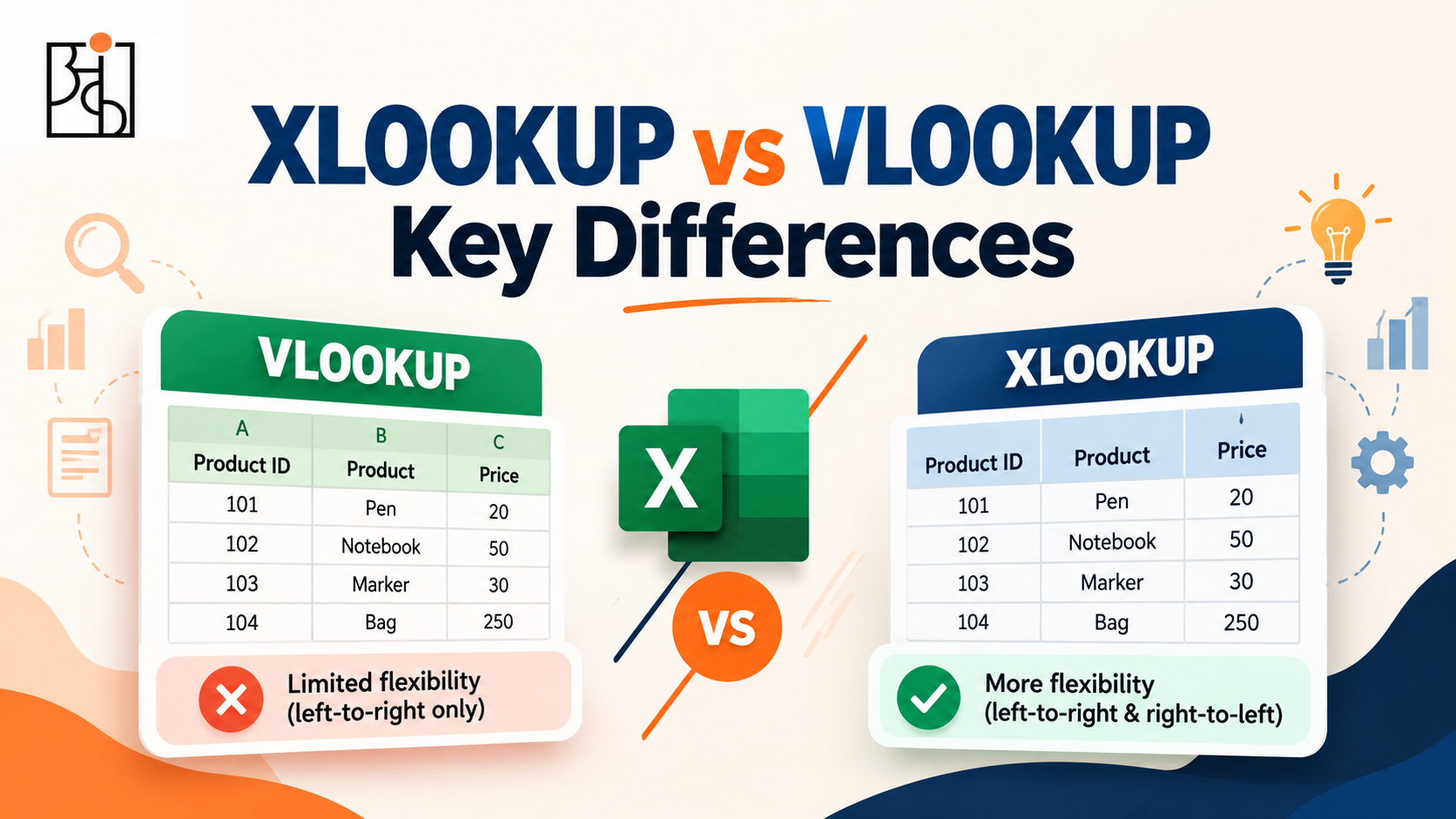
One of the most limiting parts of the VLOOKUP is that it can only look to the right. It will search through a column and return a value that is to the right. This means the column(s) we are looking up will always be to the left. If somehow our Department column was to the left of the Employee ID column, it wouldn’t work with VLOOKUP as the data would need to be moved.
XLOOKUP has no issues with this. There is no need for a column number, we just simply provide our Look Up, and Return ranges. Because we are not returning column based data, our Return column could be to the left, or right. This removes a massive source of issues from wanting to change the order of your columns.
2. VLOOKUP Will Break When Adding Columns, XLOOKUP No
Column index Number is the 3rd value within the VLOOKUP function. We’re basically telling Excel to return a value X number of_columns away. If someone were to insert a new column within our range, every VLOOKUP function referring to our column will begin to return the incorrect value.
This is one of the most commonly made errors within spreadsheets. Obviously because there is no error, lots of people miss this issue.
XLOOKUP doesn’t have this issue as our data is being referenced based off of our column. We won’t have an issue if someone wants to insert a new column somewhere.
3. XLOOKUP Has Error Handling, VLOOKUP Doesn’t
If VLOOKUP doesn’t find a match, it will return a N/A. This is not helpful to us as we would have to manually include error handling. Typically this is done by placing VLOOKUP inside an IFERROR function. =IFERROR(VLOOKUP(…),”Not Found”)
XLOOKUP includes this within our function. We can tell it what to return if there is no match. This is done by adding our ‘if not found’ value to the function. This is a small addition however removing this step from our formula can be an issue for many. Often people will forget to add this or have to remember to include it.
4. VLOOKUP Default is Approximate Match, XLOOKUP Default is Exact Match
Another small difference with XLOOKUP but extremely dangerous. When using VLOOKUP, you can decide whether you want an exact or approximate match. This is done by including the 4th value. However, if we forget to include this, by default we will get an approximate match. This has caused spreadsheet errors with the incorrect number being returned. If someone forgets to include FALSE at the end and/or the data is not perfectly sorted, we will receive the incorrect value.
XLOOKUP gives us the exact match by default. So we can be safe in knowing it will search for the exact match.
5. XLOOKUP Can Look From Bottom Up
VLOOKUP always searches top to bottom. With XLOOKUP using the 6th value, we can tell it to search bottom up. This can be super helpful when looking for the most recent match in our data.
Comparison Example
Imagine we have a Products table with these columns: SKU (A), Product Name (B), Price (C) & Stock Level (D). We want to know the Stock Level for SKU ‘B2201’.
VLOOKUP:
`=VLOOKUP(“B2201”, A2:D500, 4, FALSE)`
This will return the 4th column in the range (Stock Level) however, if someone were to insert a new column between Price and Stock Level, it would return the wrong value.
XLOOKUP:
`=XLOOKUP(“B2201”, A2:A500, D2:D500)`
This is simply telling Excel to look in the Stock Level column. If someone were to insert a new column anywhere, it would still work correctly.
Is VLOOKUP Outdated Now?
Unfortunately not! XLOOKUP is only available on Microsoft 365 and newer versions of Excel. If you have an older Excel Version or are providing someone with an Excel file who does, you will need VLOOKUP. XLOOKUP will just fail. ManyExcel files, templates and systems have been created using VLOOKUP years ago. Many people will have learned this function first and wouldn’t need to use XLOOKUP. Knowing this function is still a useful skill to know. Although, XLOOKUP is clearly the better option.
Which Should You Learn First?
If you have a newer version of Excel or Microsoft 365 you should really try and learn XLOOKUP first. It is super flexible, safer, and doesn’t have most issues that VLOOKUP has. However, it’s still a useful skill to understand. Many people will have existing issues using VLOOKUP. If you can’t understand an inherited spreadsheet full of VLOOKUP functions you’re at a disadvantage.
This is a good example of why we should know multiple tools or Excel. Although XLOOKUP is the newest, better tool, most data will not be presented in a clean modern format. At Ankashram we make sure that our clients know how to use XLOOKUP as it is the better option to use as a default. However, it’s important to teach VLOOKUP, as many real life data sets will have been created years prior to XLOOKUP.
Common Errors with These Functions
With VLOOKUP, forgetting to put FALSE as an exact match is probably the most common and damaging error. Also, hardcoding column index numbers and inserting a new column With XLOOKUP, most commonly people will forget XLOOKUP is only available on newer versions of Excel. If you share a file with someone who is on an older version of Excel the function will appear broken.
Key Takeaway
Although the syntax differs, these functions perform the same task. They’re looking for information within a dataset and returning a related value. This is an important skill to know.
At Ankashram it is one of our key hands on skills. As most data analysis will require linking pieces of data together.