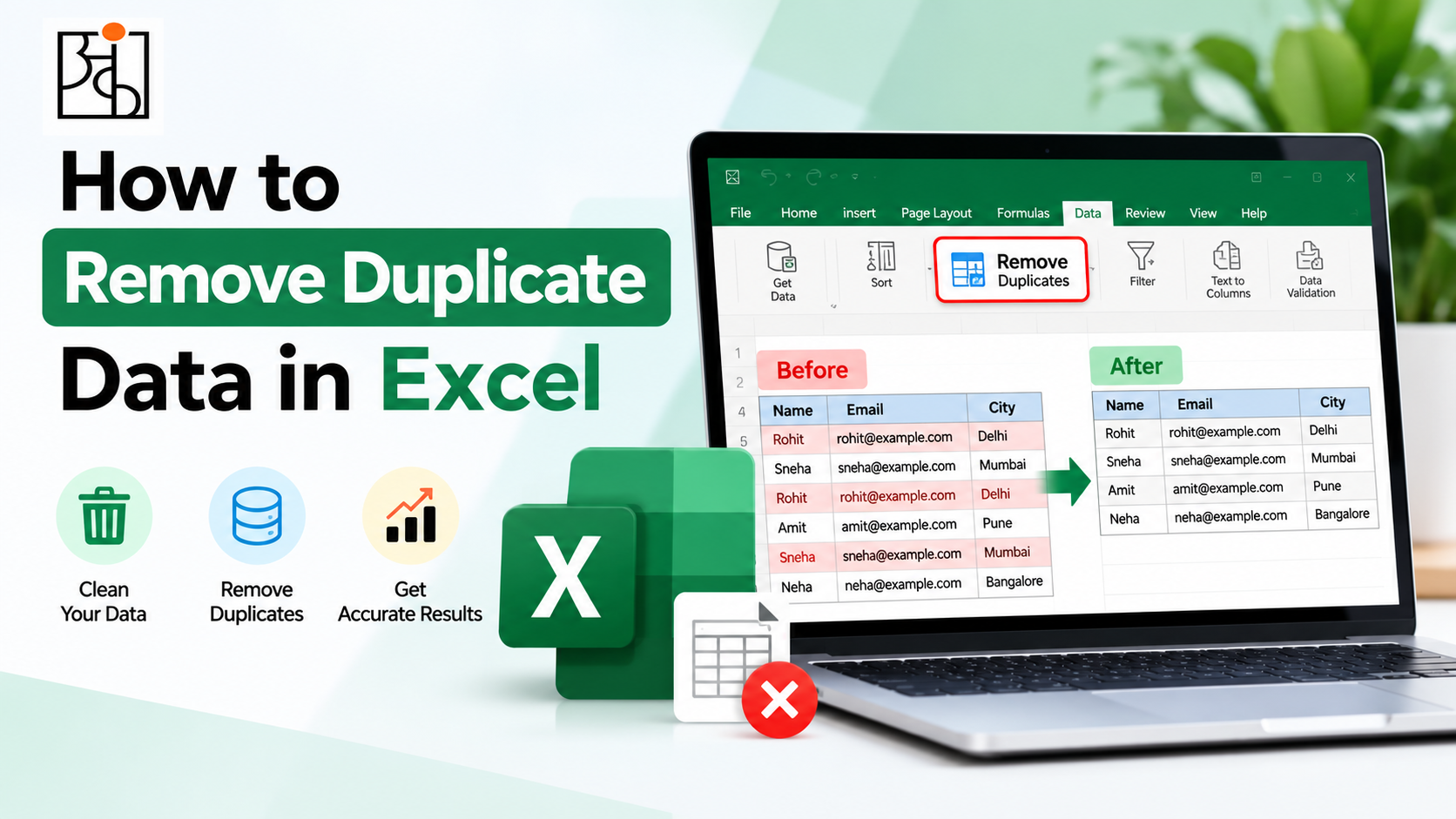
How to Remove Duplicate Data in Excel
Duplicate rows have a way of appearing when you least expect them. “Why isn’t this column adding up?” you mutter, staring at the sales report in your hands. Twenty minutes into your investigation you discover that one customer order was entered twice, once on the original submission and one on the copied version that nobody expected to find still open on their desk. Nothing terribly noteworthy happened: it’s just that one customer’s order appears twice in the final printout that’s about to go to the finance team for processing. Duplicates rarely present a problem on their own: they tend to be the result of merged tables, multiple spreadsheet imports, a form submission that was accidentally sent in twice, or data that was copy-pasted directly on top of existing information. Fortunately for Excel users, there are built-in and somewhat judgemental methods of detecting and removing these unwelcome visitors from most datasets, and this is how to use them correctly.
Table of Contents
First, Decide What Qualifies as a Duplicate
Before removing any rows of data it’s important to ask yourself — or, in a professional setting, your client — what qualifies as a duplicate entry. Sometimes it’s clear-cut: an identical set of information was entered more than once, and it’s relatively easy to remove the offending rows. Other times, however, it’s not quite so simple: two rows of information may share the same customer name and purchase date, but differ on the quantity of goods purchased, and it’s easy to accidentally remove a legitimate duplicate when attempting to remove a single, erroneous row. Decide what information constitutes a duplicate for a given set of data ahead of time; it’s often every column or a uniquely identifying column or two, but this will vary depending on the situation.
Excel’s Built-In Remove Duplicates Function
This method is quick and effective, assuming you already know what constitutes a duplicate in your given dataset. After highlighting the data you wish to modify, select Remove Duplicates from the Data tab; Excel will prompt you with a menu asking which columns should be used to detect duplicates, and will let you select either all or specific columns before confirming and removing all duplicate values. This is a very fast way of cleaning data that doesn’t involve much thinking, but should be used sparingly: it permanently modifies the spreadsheet the moment you confirm, and does not have a built-in safeguard against accidentally deleting information you didn’t intend to remove. It’s highly recommended to make a copy of the original data somewhere safe, or to save the spreadsheet beforehand, to avoid losing information that wasn’t meant to be deleted.
Find and Highlight Duplicates with Conditional Formatting
Conditional formatting is a safer, if slightly more time-consuming, way of detecting duplicates before deleting them in bulk. After highlighting the cells you wish to evaluate, select Conditional Formatting > Highlight Cells Rules > Duplicate Values from the Home tab; Excel will highlight all cells with duplicate values so they can be reviewed before any permanent deletion. Duplicates may not always be an outright bad thing: two rows of information may have been legitimately entered by mistake, or contain information that shouldn’t have been removed along with an intended row of data. Conditional formatting lets you see the duplicates for what they are before making any irreversible changes to the spreadsheet.
Read More: How to Improve Logical Thinking: A Practical Guide to Thinking Critically
Using COUNTIF to Find Duplicates
A good middle-ground between the above three methods is to use COUNTIF to flag duplicate entries for manual review.
COUNTIF allows you to count the number of times a given value has appeared so far in a column, which can be used to create a sort of flag for Excel to follow: entering =COUNTIF(A$2:A2,A2) into a cell will cause it to return 1 if the value in column A, row 2 has not appeared before, and a higher number if it has. From there it’s simply a matter of manually reviewing any entries that COUNTIF has marked as duplicates.
Countif is a slightly more involved process, but it’s often necessary for messy spreadsheets where an outright removal of “duplicates” would result in an equally erroneous modification of real world data.
Removing Duplicates that Appear Similar but are not Quite the Same
One of the trickiest situations to deal with when removing duplicates is when similar, but not exact, entries are erroneously marked as duplicates of one another.
“John Smith” and “john smith” will be considered different values by most Excel functions and must be manually adjusted to appear the same before being removed as duplicates.
The simplest way to solve this issue is to clean the text — using TRIM to remove extra spacing, PROPER or LOWER to modify capitalization, or similar text functions — before attempting to find or remove duplicates. This will prevent similar but not identical data from being erroneously removed or modified.
Email or phone number fields are another common culprit: one entry might have a space between the area code and the rest of the number while another doesn’t, or might have a hyphen in the phone number that the other does not, and will be erroneously flagged as duplicates by Excel’s default settings unless extra care is taken to ensure that similar data types are formatted the same way before being processed.
Some Final Notes on Duplicates
There’s a certain allure of laziness that comes with removing duplicates: it’s a simple, if involved, process, and most people are keen to get it over with as soon as possible, particularly if they’ve been staring at the same set of data for hours at a time. In practice, however, it’s one of the most important parts of the data analysis process. Duplicate entries have a nasty habit of inflating figures or skewing averages, and should be removed with a firm hand if they’re going to be. Ankashram views data cleaning — including, but not limited to, duplicate removal — as an analytical skill in and of itself, and recommends practicing it with the same care and attention that one would give to other, flashier aspects of data analysis. A dashboard or report built on a set of data with hidden duplicates may look good on paper, but will almost certainly give incorrect or misleading information to whomever has to review it.
Some Helpful Reminders Before Trying to Remove Duplicates
Before removing any apparent duplicates from a dataset, stop and consider which values constitute a duplicate in the first place, ask yourself if there’s the possibility that a single set of information might appear more than once in the final dataset by accident, and remember to clean text formatting — particularly capitalization and extra spacing — before searching for duplicates, to avoid accidentally deleting valid entries that Excel considers “duplicate” due to formatting inconsistencies.
It’s also a good idea to back up any data before performing a large-scale data removal operation, just in case something goes wrong. Even a simple copy-paste to another sheet will suffice in most cases, as long as the data is somewhere save in the event of an emergency.
Read More: How to Think Like a Data Analyst (Even If You’ve Never Touched a Spreadsheet
Conclusion
Excel’s built-in duplicate removal function is fast and simple to use, assuming you have a clear idea of what you want to remove in the first place. Conditional formatting and COUNTIF flags are both good ways of finding duplicates to review before permanently deleting them, and remembering to clean text data of extra spacing or erroneous capitalization before searching for duplicates can save you headaches later on down the line.
None of these methods are particularly difficult to use, but they’re all valuable parts of the data analysis process that are too often overlooked in favor of moving on to more glamorous aspects of the job. Ankashram often encourages its employees to use these often-overlooked tools as a way of ensuring that the underlying data has been handled responsibly before building charts, reports, or other flashy displays on top of it.
Frequently Asked Questions
Q1.Does Excel’s Remove Duplicates function delete the original rows or the erroneous ones?
It deletes all rows of data that match the first instance of a given value, for whichever columns are being used to determine duplicates. Sorting the spreadsheet beforehand can be useful if you want to decide which set of information should be kept, as Excel will treat the first entry it sees as the “correct” one by default.
Q2.Can I undo a Remove Duplicates operation if I change my mind?
Like most Excel operations, pressing Ctrl+Z immediately after will undo the changes and restore the spreadsheet to its previous state. Beyond that, however, it’s a good idea not to permanently delete data you’re not sure you want to delete, and to back up the file somewhere safe in case of an emergency.
Q3.Why does Excel consider some sets of information to be duplicates when they’re clearly not?
There are a few common reasons for this, the most common of which is extra spacing or erroneous capitalization in text fields. Text values are often case-sensitive in Excel, meaning that “John” and “john” will be treated as two separate entries by default, and can be flagged as duplicates erroneously if extra care isn’t taken to clean the text beforehand. Some people also erroneously mix numbers and text, or use different data types in different cells, and Excel will consider “12345” and “12345” to be two separate values if one is written as text and the other as a number.
Q4.What’s the difference between removing duplicates and hiding them?
When you hide duplicate rows of data, Excel is simply telling it to ignore them for display purposes. When you remove duplicates, however, you’re permanently deleting them from the spreadsheet, so it’s a good idea to take extra care when deciding which duplicates to delete, to avoid accidentally removing important information.
Q5.Should I remove duplicate data before or after doing other forms of cleaning?
After, generally speaking, but before doing any heavy lifting like creating charts, graphs, or calculations that rely on the data. Duplicate information should be removed after very basic text cleaning (removing extra spacing, fixing capitalization) but before doing any analysis or creating any displays based on the data, to avoid skewing results or having to redo calculations if information is permanently deleted later on down the line.
Q6.How does this tie in to Ankashram’s teachings on data analysis?
Ankashram encourages its employees to practice this kind of detailed, involved analysis on their data, as a way of ensuring that information has been handled responsibly before moving on to more flashy or showy aspects of the job. A dashboard or report that looks good on paper but contains hidden duplicates will almost certainly provide misleading information to whomever has to review it, and should be avoided in favor of more involved, meticulous analysis that takes the underlying data into account.