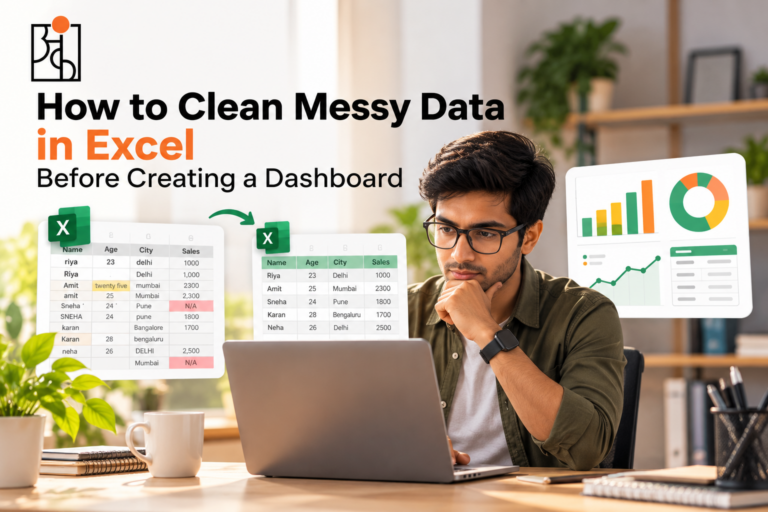
7 Best Free AI Tools for Data Analysis in 2026
Free AI tools for data analysis are changing how businesses and students work with data in 2026. These tools can help you analyze Excel spreadsheets, identify trends, generate charts, and summarize complex datasets without requiring advanced coding skills. In this guide, we’ll explore seven free AI tools for data analysis and compare their features, benefits, and limitations.
Table of Contents
What these tools can and can’t do
The majority of them allow you to upload a CSV or Excel file. You then pose your questions in plain English. No formulas. No SQL. “Which product category saw the biggest growth this quarter?” is likely to get you a genuine answer (sometimes complete with a chart). That’s a lot quicker than constructing your own pivot table.
They’re okay at the basics of cleaning and summarising. They’ll pick up on the obvious issues. They’ll give you some stats. They’ll highlight columns that look suspect. A lot of them will write a formula or piece of code if you ask. Most of them can produce a simple chart from a single sentence.
What they can’t do is understand your business. The AI has no idea why sales went down in March. It might have been a client who simply delayed a payment. That kind of detail still has to come from you.
7 free or freemium tools worth trying
- ChatGPT (Free Tier)

ChatGPT’s free version comes with a Python sandbox. You can upload a CSV or Excel file and it will run the calculations for you and generate the charts straight in the chat. Very useful for a quick initial look at a single dataset. No setup required at all. Just works.
It has its limits. If you ask too much it may just cut you off. Large files will often be summarised rather than fully checked. It’s a general assistant rather than a pure data tool. Complex queries will typically require a lot of back and forth.
- Claude (Free Tier)
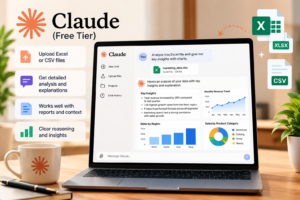
Claude is very good with file uploads. Excel and CSV both work perfectly. It does best when you also provide some written context (i.e. a report alongside the spreadsheet). It’s better at explaining its reasoning than most tools. You actually do get an explanation of how it got to the answer.
Free tier limits still apply. Large files may need to be split. It doesn’t build reusable dashboards. Best for one-off analysis.
- Microsoft Power BI Desktop
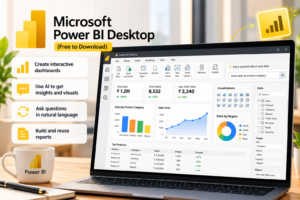
Power BI Desktop is free to download. The AI features are useful for visuals and for answering natural language questions. Very useful if you’re not a BI expert but still want to end up with a decent dashboard. The chat capabilities are very fast at giving you insights. You can build something in Power BI that you can then update and reuse.
There’s a learning curve. It’s a full app not a website. Some of the more sophisticated AI features require a paid plan. Sharing out the finished dashboard generally requires a license.
Read More: Why Data Analytics Projects Matter So Much for Beginners
- Google Looker Studio
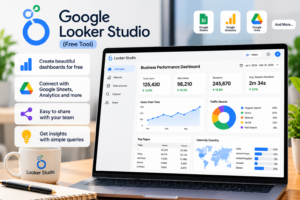
Looker Studio is free. It integrates very easily with Google Sheets, Google Analytics and a few other places. A good option if you want a shareable dashboard from your Google data without having to start from scratch.
The AI is lighter than some of the others. It’s really good at simple queries. It’s easiest when your data is already in Google. Other sources will require a bit more effort.
- Julius AI (Free Tier)

Julius is built for data work rather than general chat. That’s evident. It will often ask you clarifying questions first. It will suggest charts that actually work. It’s far better at keeping the conversation on track than most of the other chatbots. The free tier is limited but adequate for occasional small jobs.
You get a monthly message limit. If you’re using it heavily you’ll likely end up wanting the paid version.
- KNIME
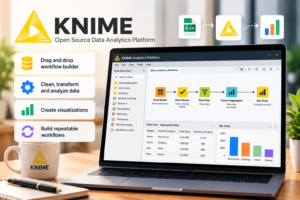
KNIME is free and open source. A completely different approach really. You drag and drop nodes rather than typing questions. Load the data. Clean it. Alter it. Visualise it. Very strong if you’re doing the same thing over and over again.
The learning curve is quite steep, the interface can be a bit overwhelming at first and it’s not really suited to answering one-off questions. It’s better for repeatable workflows.
- GPTExcel
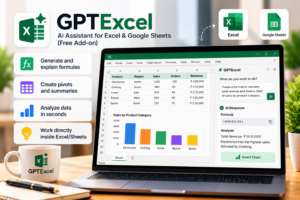
GPTExcel is a free add-in for Excel and Google Sheets. It writes formulas, suggests pivots and can do some basic analysis. You stay entirely within the spreadsheet. Useful if you’re primarily an Excel/Sheets user and just want faster formulas.
It’s more limited than the full AI suite actually. It’s only really for spreadsheet work. Not for dashboards or any form of broader analysis.
Read More: How to Think Like a Data Analyst (Even If You’ve Never Touched a Spreadsheet
Comparison
| Tool | Best For | Free Plan | Ease of Use |
| ChatGPT | Quick, conversational analysis of a single file | Yes, with usage limits | Very easy |
| Claude | Analysis combined with written context or documents | Yes, with usage limits | Very easy |
| Power BI Desktop | Building a reusable, refreshable dashboard | Yes, full desktop app free | Moderate |
| Looker Studio | Shareable dashboards from Google data sources | Yes, fully free | Easy |
| Julius AI | Guided, back-and-forth data exploration | Yes, limited messages/month | Easy |
| KNIME | Repeatable, visual data workflows | Yes, fully free, open-source | Steeper learning curve |
| GPTExcel | Formulas and quick analysis inside Excel/Sheets | Yes, with usage limits | Very easy |
How to analyze an Excel file with AI
The steps are simple, they’re pretty much the same across the various chat tools.
Just upload the file (ChatGPT, Claude, Julius and the lot all have a simple upload button for Excel or CSV). Then pose a clear question. “Analyse this data” will generally give you a very generic summary. “What were the top 3 products by revenue last quarter and did any region underperform?” is likely to get you a more useful answer.
Keep going after the first answer. Ask it to break the numbers down another way. Ask it to explain more. Treat it as a conversation and you’ll get far better results.
Always check the numbers. It’s so easy to be convinced by something that sounds precise. Do a spot check on a few of the figures, particularly if you’re going to put them in a report.
How to create charts and dashboards with AI
For a quick one off chart, a chat tool is absolutely fine. Just upload the file, tell it what you want and you’ve got the chart in seconds. Faster than almost any other option really. The chart is right in the chat.
If you’re going to be using the chart more than a couple of times then build a real dashboard. Power BI Desktop and Looker Studio are both free and can create visuals from plain language requests. They’re also much easier to update and share.
Good approach: use the chat tools to go out and find the charts that are relevant. Then rebuild the final versions in a proper BI tool.
Read More : Online vs Offline Data Analytics Course Which Is Actually Better?
Limitations, privacy, and common mistakes
Free plans have limits. Message caps. File size caps. Complexity caps. You can quite easily find yourself hit by one of those in the middle of a piece of work and that can be very disruptive. Know the limits before you start to depend on a tool for anything significant.
These tools don’t always pick up their own errors and can be just as confident when they’re wrong. Always double check any numbers that are going into a presentation or report.
Privacy is an issue with sensitive data. Some of the free tools will use your uploaded data for training. Others have quite weak controls on their free accounts. Always read the policy first. If the data is important then consider a paid option.
One common error is to take the first answer as the final answer. If it doesn’t feel right then ask follow up questions.
Another one: uploading of messy or badly labelled data. A column called ‘Q’ means absolutely nothing to the AI. Give it some context.
Treat these as a fast assistant who has never worked at your company. Not as an expert who knows everything. They’re useful for drudge work. They still can’t in any way replace judgement, particularly in terms of deciding which questions you actually want to ask.
Frequently Asked Questions
Q1.What’s the best free AI tool for data analysis?
It depends on what you’re after. ChatGPT and Claude are the easiest if you just need to get something done quickly. Power BI Desktop and Looker Studio are the way to go if you’re looking to create a reusable dashboard.
Q2.Can free AI tools deal with large Excel files?
The majority have size or complexity limits and very large files will often be summarised or broken into chunks.
Q3.Are free AI data analysis tools accurate?
They can. But accuracy isn’t assured. A confident answer isn’t necessarily a correct one. Always check the key figures.
Q4.Is it safe to upload company data to free AI tools?
It varies from tool to tool. Many of them can use the data you upload for training. With sensitive data, you’ll want to check the policy and consider the paid options.
Q5.Can AI tools replace a human data analyst?
Not for the important bits. They’re good at accelerating the repetitive work. They don’t have any understanding of the business context and won’t pick up on issues in the way a human would.